
Add a project due date with your coding agent
Add an optional due date to projects in Atelier. Enter the date when creating a project, then check that it appears on the project card after saving and reloading. This exercise takes one field through the form, database and display.
The example was implemented with Codex using kit 0.3.1, with an independent review and subsequent corrections. To try it in your own copy, give your agent the prompt below and check the result using the guides supplied with your version. The current customization guide covers Atelier 0.7.0.
Ask your agent to add the date
Open your application’s source directory in Codex or Claude Code. Both use the
application’s shared instructions: CLAUDE.md points Claude Code to AGENTS.md and the
README. This prompt is adapted from the request used for the example:
Follow AGENTS.md and .agents/skills/kit-feature/SKILL.md to add an
optional due date when creating a project. Show the saved date on
its project card in the list.

Use a calendar date in YYYY-MM-DD format and a nullable SQL date
column. An omitted or empty field means no due date. Allow past
dates. Reject impossible dates, incorrect formats and invalid types.
Keep the same calendar day through input, storage and display
across time zones.

Limit the change to creation and display; leave later editing,
reminders and sorting for another feature. Preserve permissions,
subscription restrictions and quotas. Keep existing active and
archived projects through the migration.

Use fictional data. Extend the existing tests for migration and
replay, validation, display of the saved date, permissions, quotas
and erasure. Review the diff and try the changed workflow in the browser.
Follow the field through the application
The database change adds a nullable date column in a new migration. Existing
projects keep their data and have no due date; earlier migrations stay unchanged.
The creation form adds an optional date input. Request validation checks its
value before the write transaction stores it.
A due date such as 2026-11-03 identifies a calendar day. Converting it to a
timestamp can shift the displayed day across time zones. Carry that date through
validation, storage, workspace reads and display without introducing a time of
day. An impossible value such as 2026-02-30 must be rejected.
The project card shows the saved date. Projects without a date keep their existing display. Here is the result from the kit 0.3.1 example:
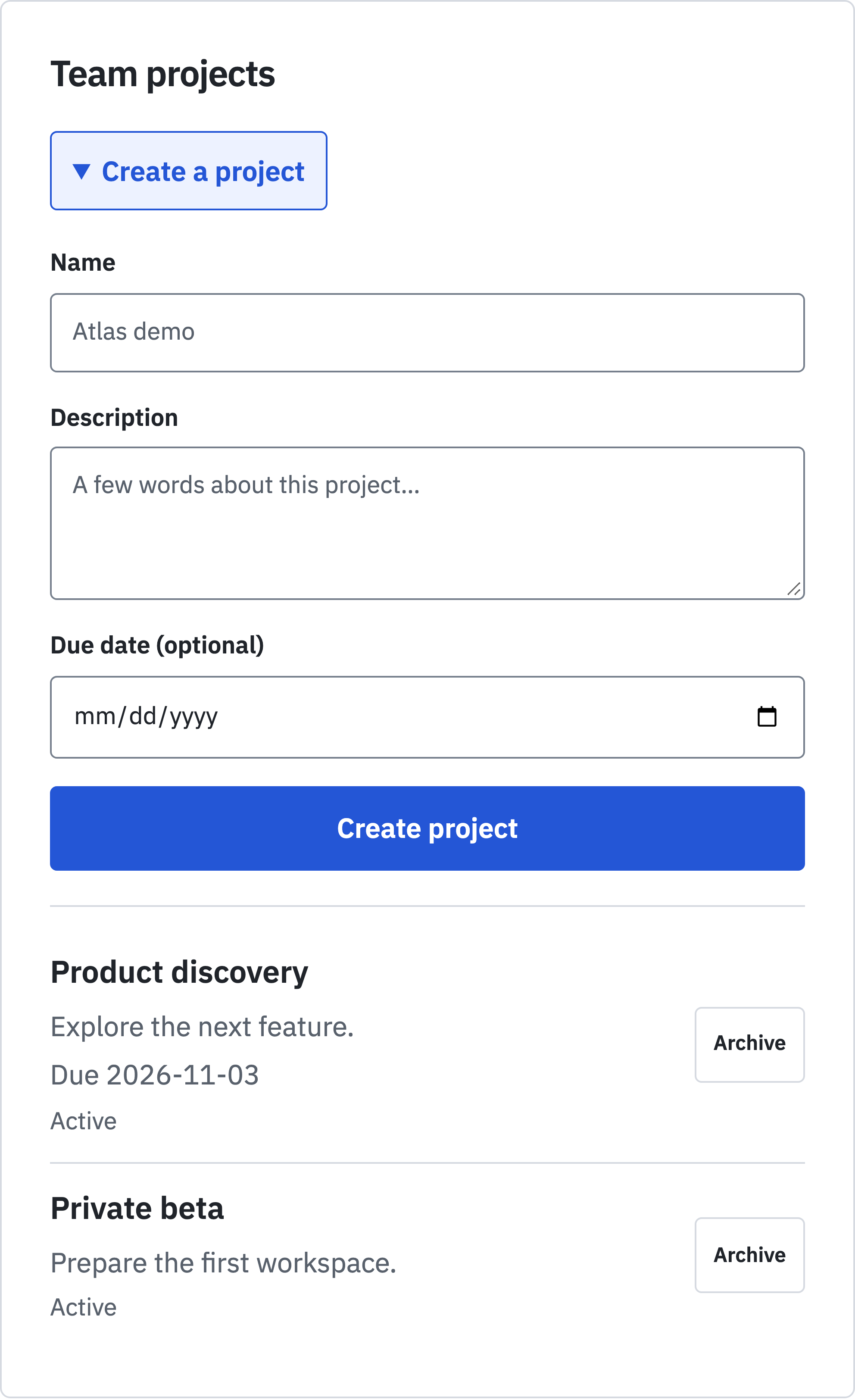
Read-only members can still see the date, including after archiving or subscription cancellation. Writes retain team isolation, owner permissions, the active-plan requirement and the project quota.
Check your result
Review the diff, then use the verification workflow to select and run the affected checks:
- Migrate existing active and archived projects, then apply migrations again. Check that their data remains intact.
- Create projects with and without dates, including a past date. Reject impossible dates, incorrect formats and invalid input types. Reload the page and check that the saved calendar day stays the same across time zones.
- Check owner and read-only member access. Verify that access from another team and project creation without an active subscription are rejected. Concurrent project creation must still respect the project quota.
- Check that eligible erasure removes the due date along with the project.
Static checks, integration tests, the build and Chromium workflows passed on the customized copy used for the example, after review and correction.
For a broader customization you can try, explore the audit tracker example. The technical overview explains the supplied application, and you can try standard Atelier.
See price and licence for the current kit.